
Portfolio space
How to create multi-workspace views, manage and track the content of your workspaces in a cross and macro way
In this article
Introduction
A portfolio brings together several workspaces of the same organization. Use it to:
- see the cards of several workspaces in the same views,
- follow indicators of several projects in a dashboard,
- share an overview with people who do not work in each workspace.
On kantree.io, portfolios are available with the Business plan.
Create a portfolio
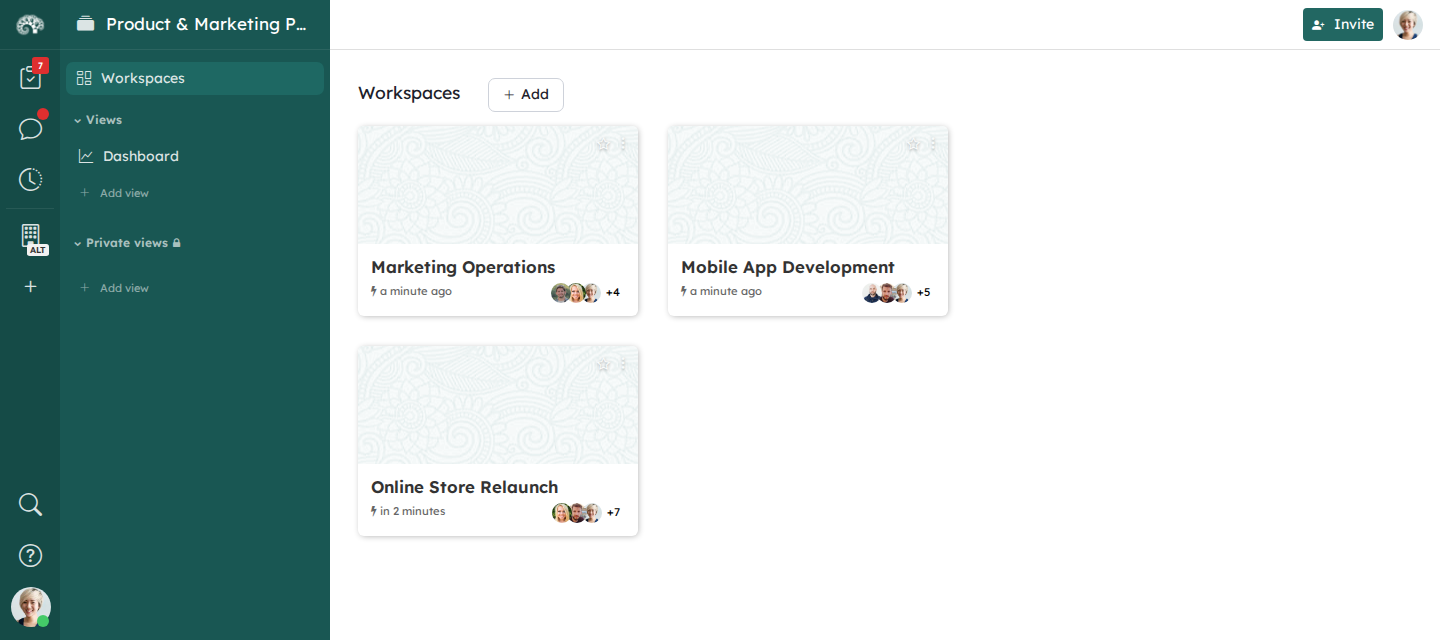
Owners, administrators and managers of the organization, and administrators of a team, can create portfolios.
- On the page of the organization or of a team, open the Portfolios tab.
- Click New portfolio.
- Enter the name of the portfolio, then choose the workspaces to include. You can also add them later.
- Click Create portfolio.
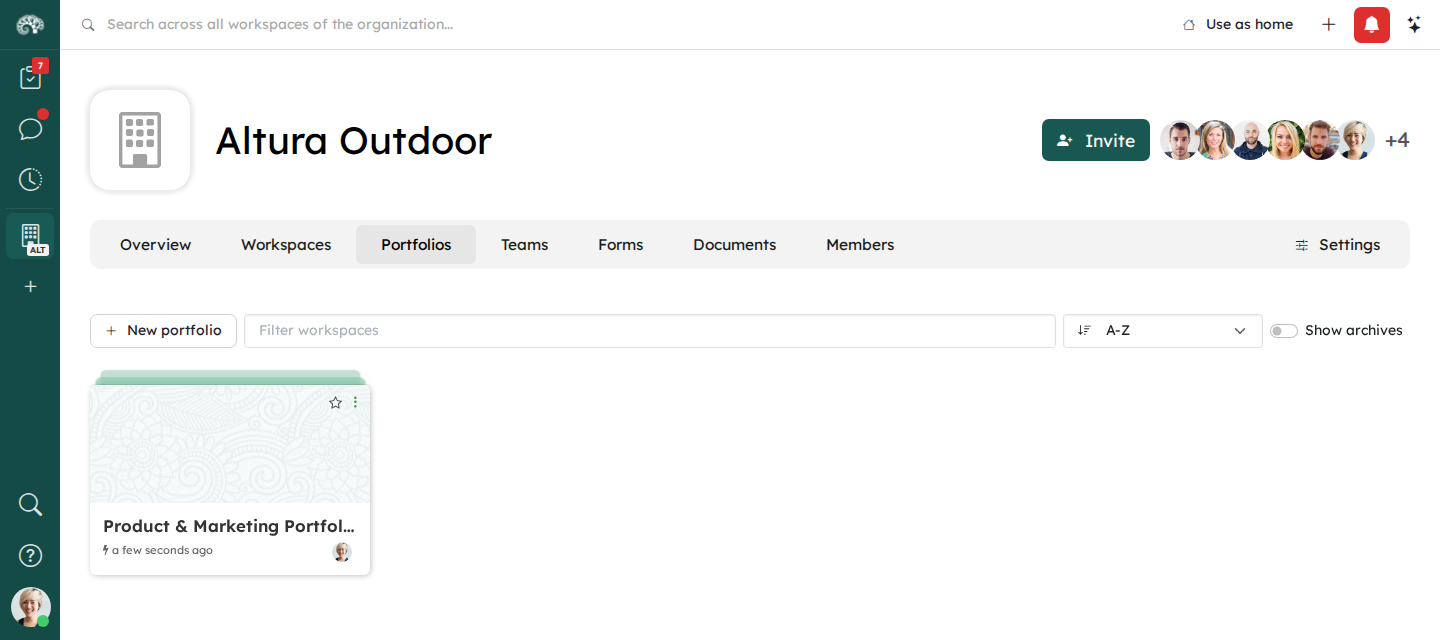
To add workspaces later, open the Workspaces page of the portfolio, then click Add. To remove a workspace, open its menu in this page, then click Remove from portfolio. You can only add the workspaces that you are a member of.
Like a workspace, you can add a portfolio to your favorites. It appears with a folder icon.
Create portfolio views
Portfolio views work like workspace views: click Add view, then choose the type of view. A new portfolio has a Dashboard view.
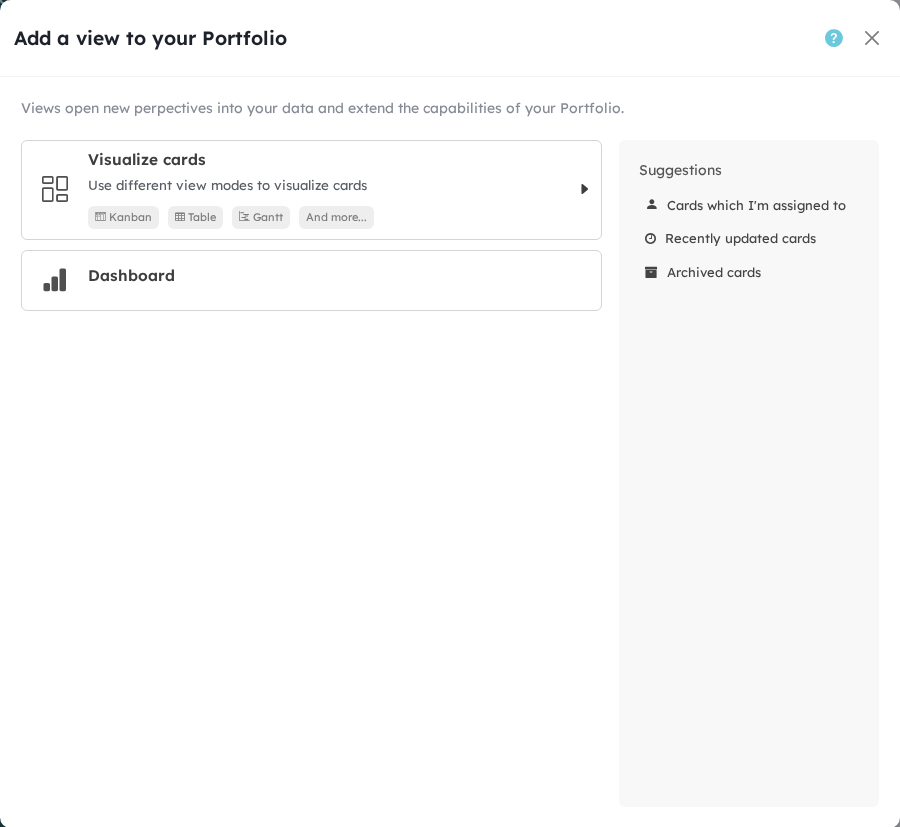
The views show the cards of all the workspaces of the portfolio. Filter and group them as in a workspace. To show the cards of some workspaces only, filter on the workspace, for example workspace="Online Store Relaunch". See KQL.
The dashboard of a portfolio computes its charts with the data of all its workspaces. See Dashboards.
Work together in a portfolio
To share the portfolio, click Invite at the top right. You can invite members of the organization, or people outside it. In the settings of the portfolio, choose who can see it, as for a workspace. See Who can see a workspace.
Best practices for indicators
To compare the data of several workspaces, the workspaces must have the same structure: the same steps, the same fields with the same values. Use:
- the same field names in all the workspaces,
- fields shared by the organization. See Organization fields.
- card types shared by the organization. See Card types.
- workspace templates: create the workspaces from the same template. To make a template from a workspace, open its settings, then click Save as a template.